> ## Documentation Index
> Fetch the complete documentation index at: https://docs.glood.ai/llms.txt
> Use this file to discover all available pages before exploring further.

# How to enable glood integration v3

This guide will walk you through the process of enabling Glood integration v3 on your Shopify store.

## Step 1: Create a New Theme

1. Go to your Shopify Admin Panel
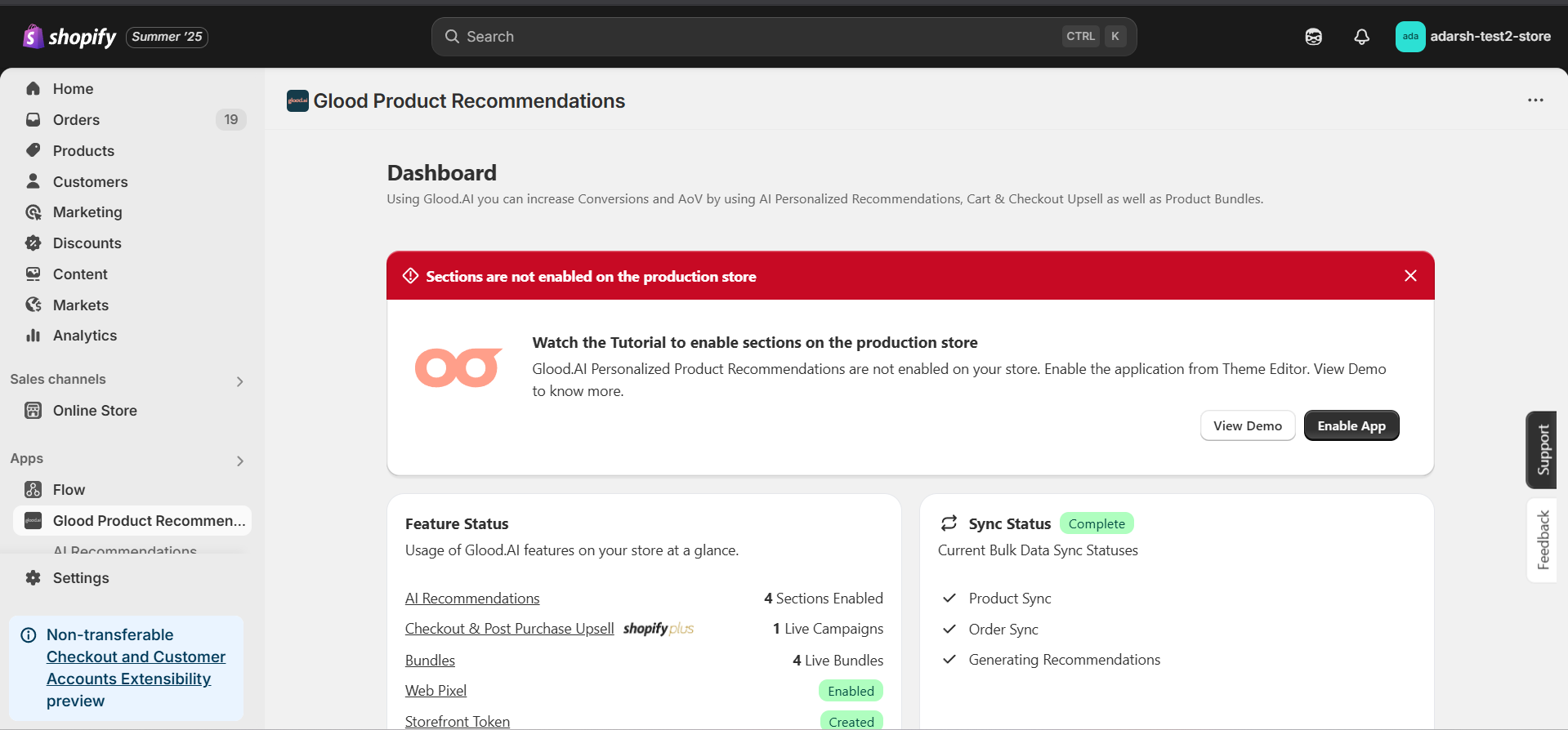
   <img src="https://mintcdn.com/gloodai/ni0foB2K8sCePNiO/images/integration-01.png?fit=max&auto=format&n=ni0foB2K8sCePNiO&q=85&s=74799d7892e71e490070edb6ffd901b1" alt="Create new theme" width="1919" height="894" data-path="images/integration-01.png" />

2. Navigate to **Online Store > Themes**
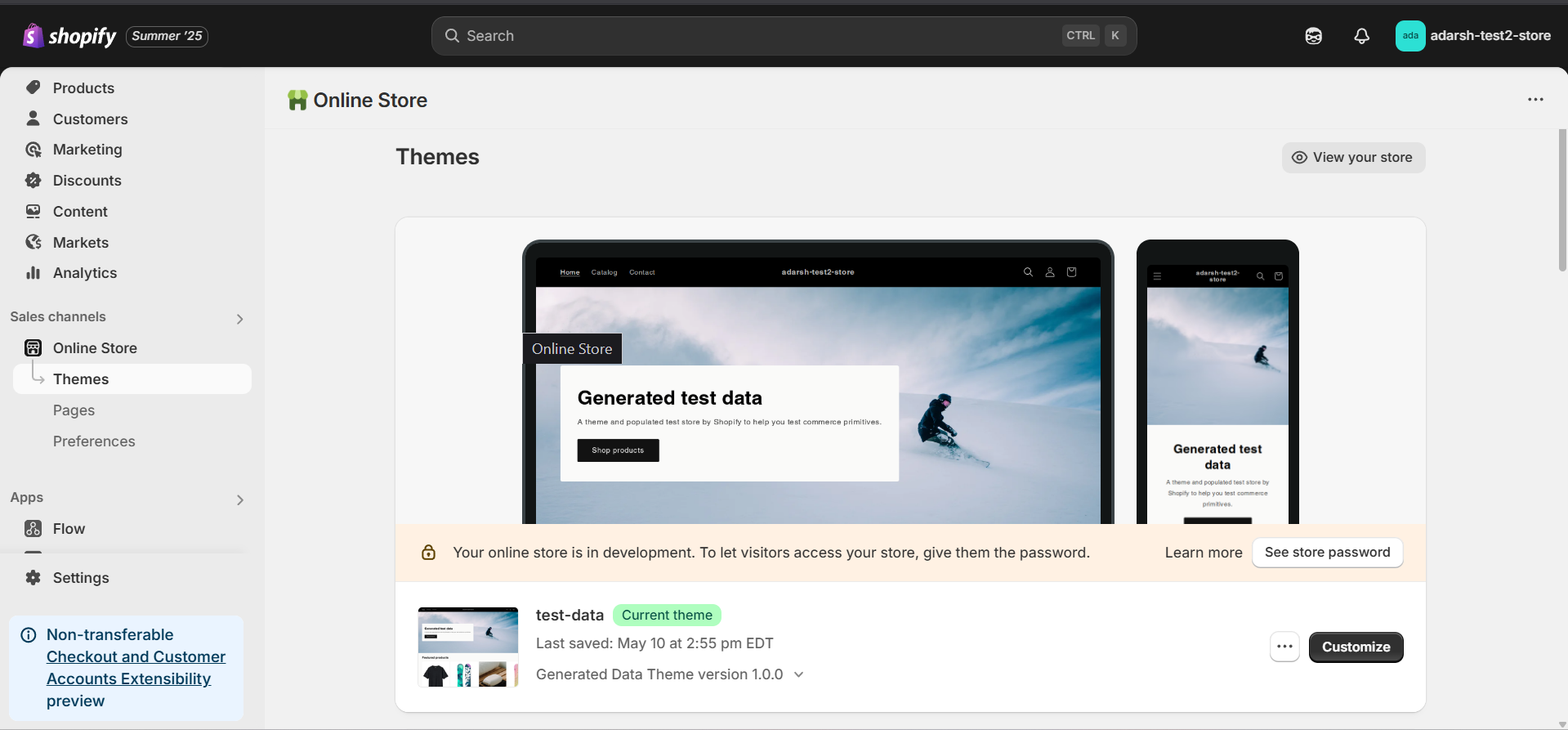
   <img src="https://mintcdn.com/gloodai/ni0foB2K8sCePNiO/images/integration-02.png?fit=max&auto=format&n=ni0foB2K8sCePNiO&q=85&s=e9f01505c66a4db93a52e50b6e36e3f4" alt="Navigate to Online Store > Themes" data-og-width="1919" width="1919" data-og-height="893" height="893" data-path="images/integration-02.png" data-optimize="true" data-opv="3" srcset="https://mintcdn.com/gloodai/ni0foB2K8sCePNiO/images/integration-02.png?w=280&fit=max&auto=format&n=ni0foB2K8sCePNiO&q=85&s=dc701a765b81ee5ec6e4bc977dd869a7 280w, https://mintcdn.com/gloodai/ni0foB2K8sCePNiO/images/integration-02.png?w=560&fit=max&auto=format&n=ni0foB2K8sCePNiO&q=85&s=0a2abb33ba16903f2405080a5a86c0f5 560w, https://mintcdn.com/gloodai/ni0foB2K8sCePNiO/images/integration-02.png?w=840&fit=max&auto=format&n=ni0foB2K8sCePNiO&q=85&s=0b35facbdd353438a21f3f6747389af9 840w, https://mintcdn.com/gloodai/ni0foB2K8sCePNiO/images/integration-02.png?w=1100&fit=max&auto=format&n=ni0foB2K8sCePNiO&q=85&s=6c4ea57ebd67fd5617fb88c8da341558 1100w, https://mintcdn.com/gloodai/ni0foB2K8sCePNiO/images/integration-02.png?w=1650&fit=max&auto=format&n=ni0foB2K8sCePNiO&q=85&s=e19e86207a3dd8f76240a34eb17cbf60 1650w, https://mintcdn.com/gloodai/ni0foB2K8sCePNiO/images/integration-02.png?w=2500&fit=max&auto=format&n=ni0foB2K8sCePNiO&q=85&s=623342b449bbf4bfa264ea0e874deb52 2500w" />

3. Click **Actions** next to your current theme and select **Duplicate**
   * This will create a copy of your current theme to work on safely
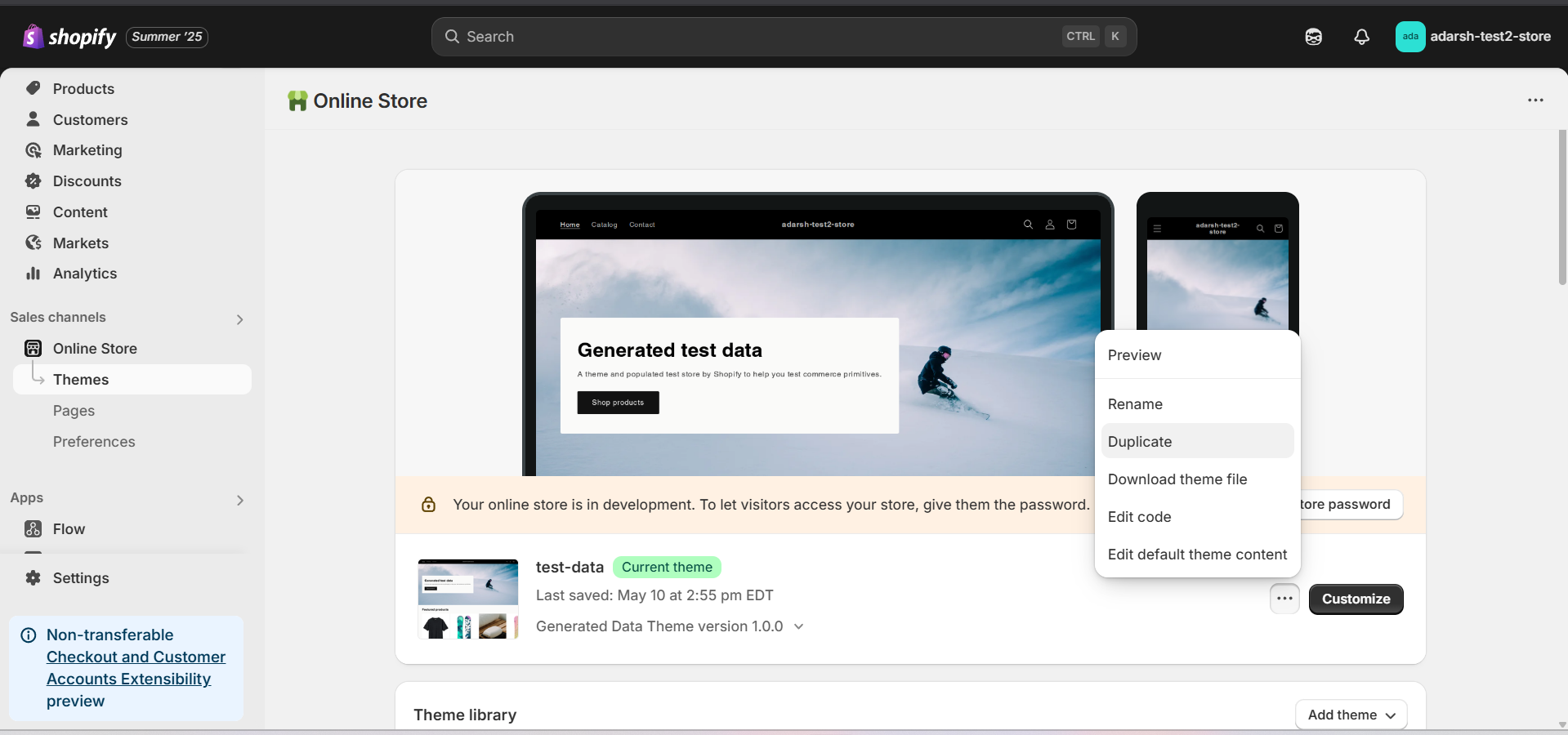
   <img src="https://mintcdn.com/gloodai/ni0foB2K8sCePNiO/images/integration-03.png?fit=max&auto=format&n=ni0foB2K8sCePNiO&q=85&s=a1a17411d8e21a89eab206581d8d1961" alt="Duplicate theme" width="1919" height="900" data-path="images/integration-03.png" />

## Step 2: Enable Glood App Embed & v3 Recommendations

1. Open the newly duplicated theme

2. Click **Customize** on the theme
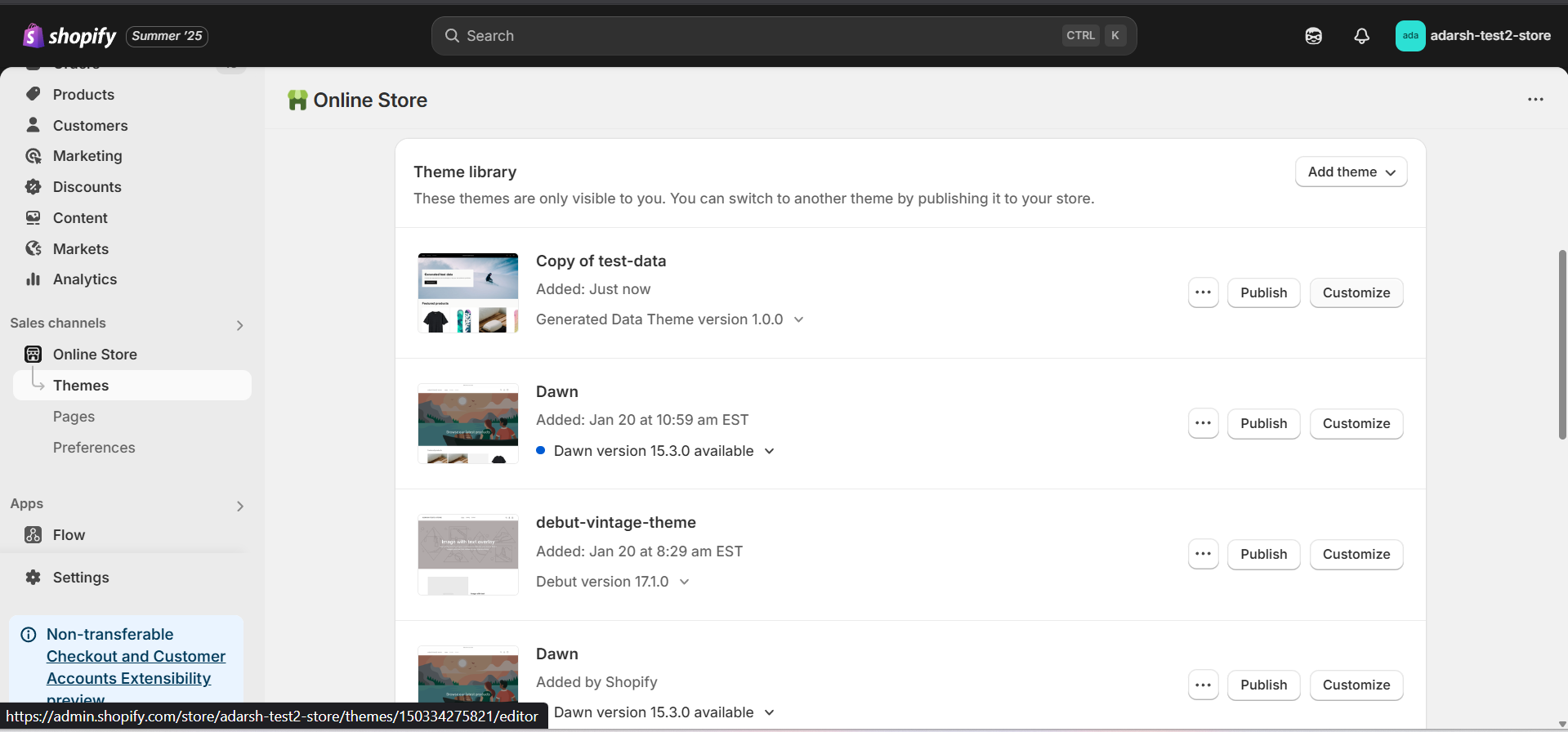
   <img src="https://mintcdn.com/gloodai/ni0foB2K8sCePNiO/images/integration-04.png?fit=max&auto=format&n=ni0foB2K8sCePNiO&q=85&s=ad03f07d4fc154db6c49ea19058c8837" alt="Open duplicated theme" width="1919" height="896" data-path="images/integration-04.png" />

3. In the editor, click on **App Embeds** (on the left-hand panel)
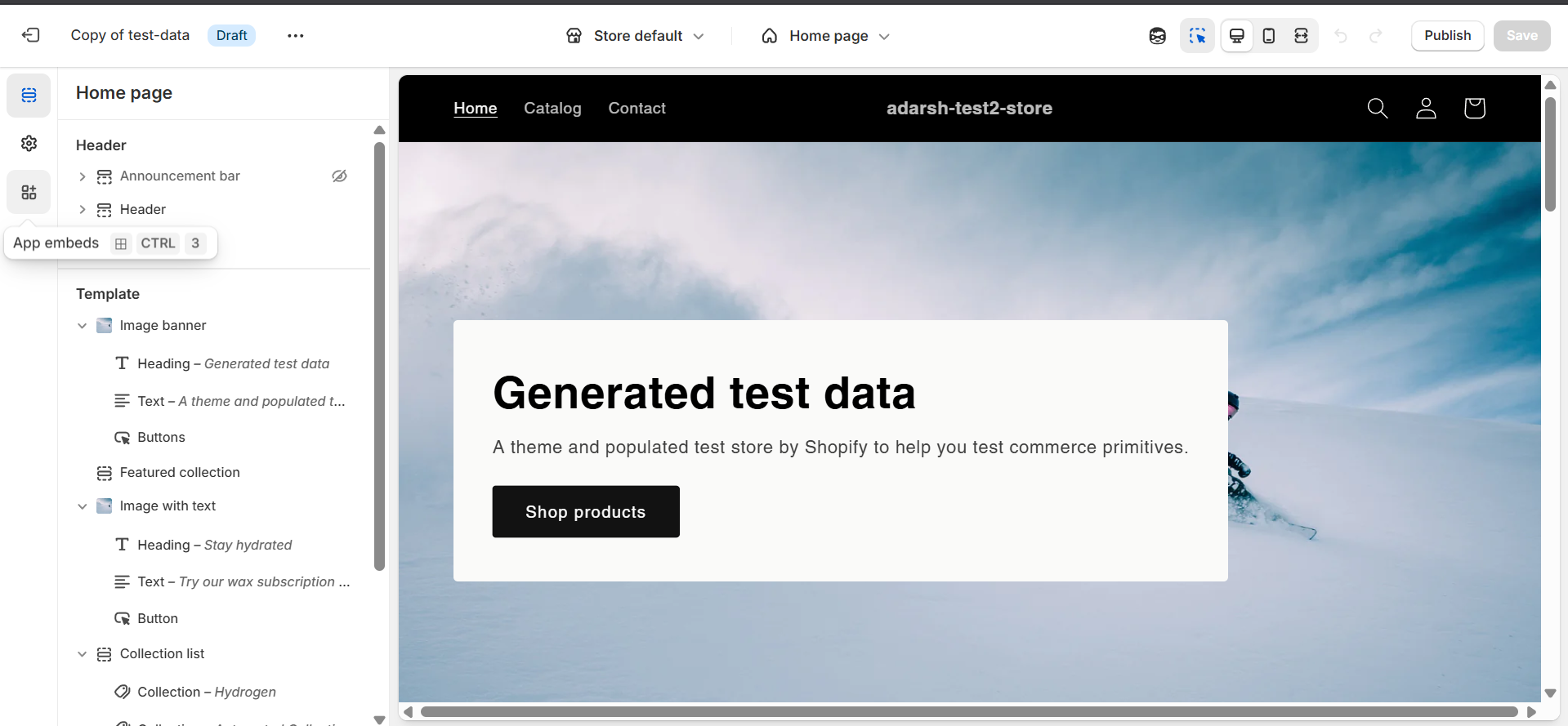
   <img src="https://mintcdn.com/gloodai/ni0foB2K8sCePNiO/images/integration-05.png?fit=max&auto=format&n=ni0foB2K8sCePNiO&q=85&s=fe53486d291e6c3ad8324860a67f8acf" alt="App Embeds" width="1919" height="889" data-path="images/integration-05.png" />

4. Locate **Glood** in the list

5. Toggle the switch to enable the Glood app embed
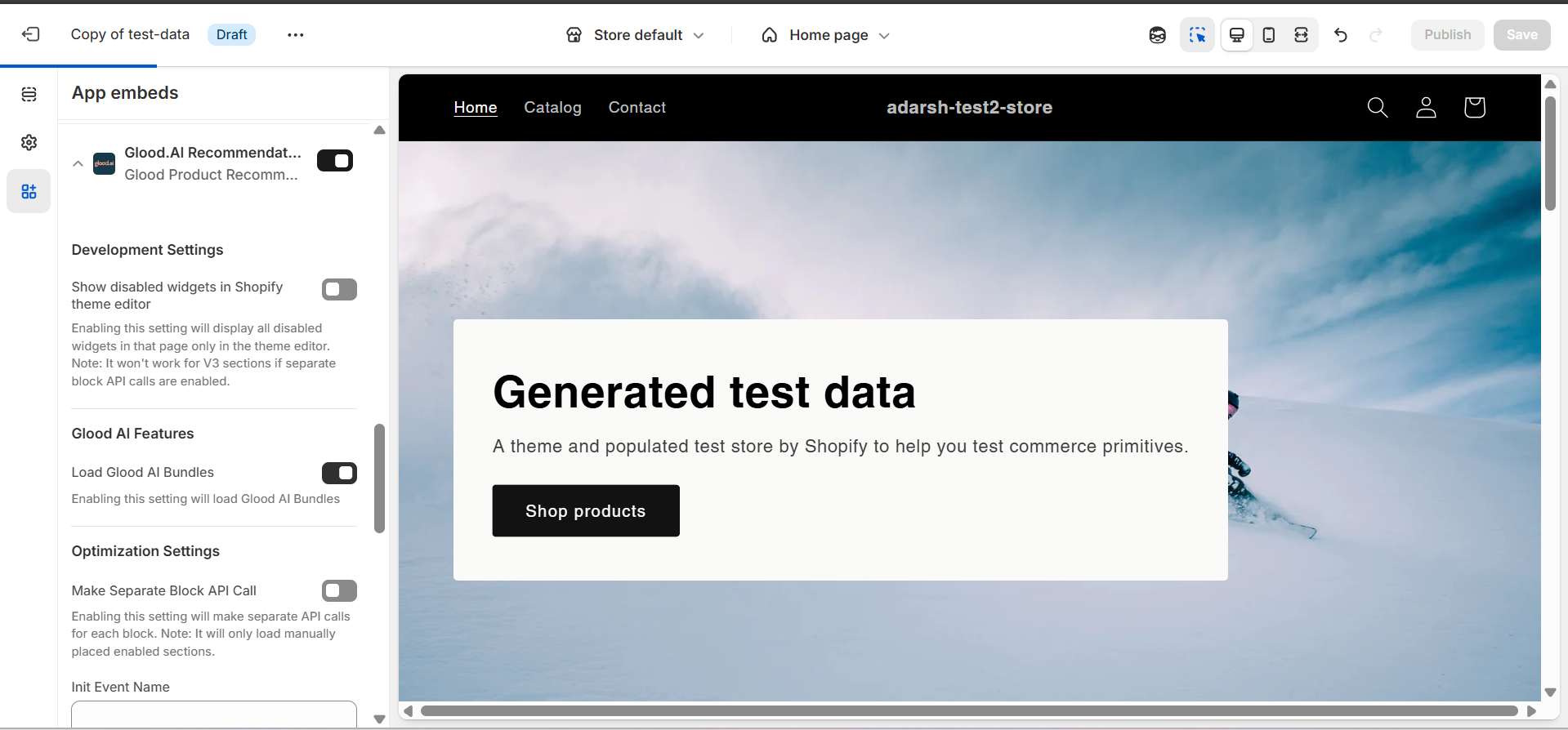
   <img src="https://mintcdn.com/gloodai/ni0foB2K8sCePNiO/images/integration-06.png?fit=max&auto=format&n=ni0foB2K8sCePNiO&q=85&s=5d32b945b6982d3854f7941ca76d32a6" alt="Enable Glood app embed" width="1919" height="894" data-path="images/integration-06.png" />

6. Within the Glood embed section:
   * Make sure the **v3 Recommendations** option is also enabled
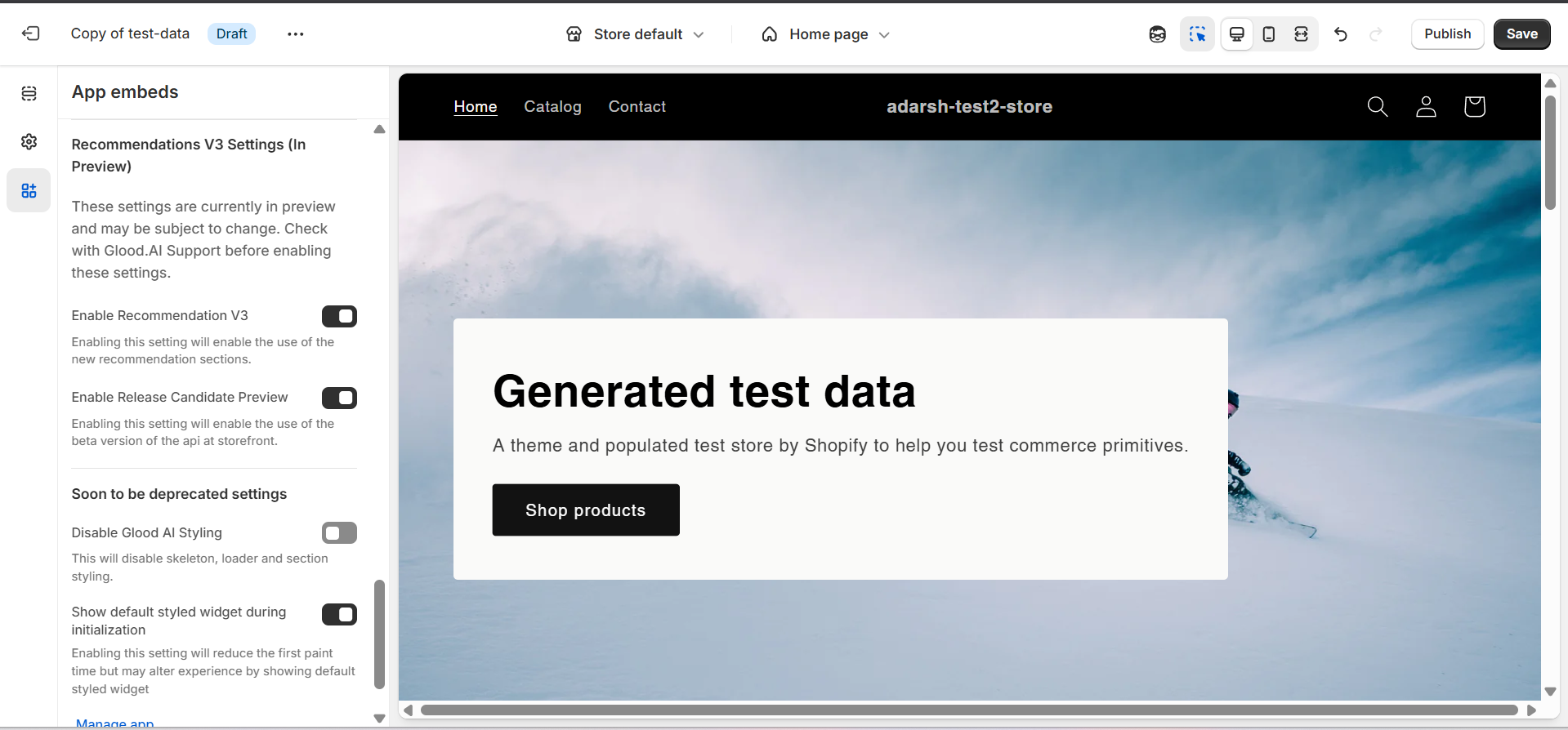
   <img src="https://mintcdn.com/gloodai/ni0foB2K8sCePNiO/images/integration-07.png?fit=max&auto=format&n=ni0foB2K8sCePNiO&q=85&s=f062b1312706fd369d83766621d2dc70" alt="Enable v3 Recommendations" width="1919" height="894" data-path="images/integration-07.png" />

7. Click **Save**

After completing these steps, your Glood integration v3 will be active on your store.

## Need Help?

If you encounter any issues during this process, please contact our support team at [support@glood.ai](mailto:support@glood.ai).
