

How to set a collection’s sort order
1. Open the collection sort settings
In the Glood AI Search & Merchandising app, go to Settings and scroll to the Search Results Page section. Under Sort order for specific collections, click Add collection.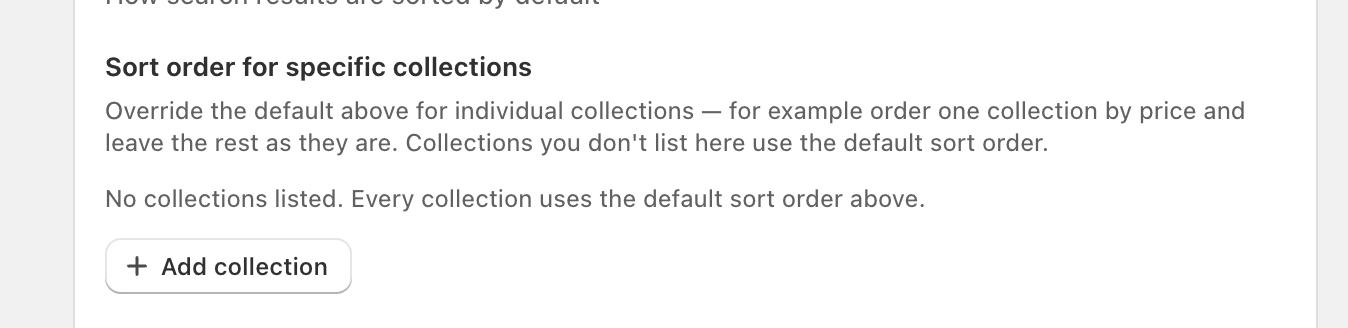
2. Select the collection and its ordering
Pick the collection, then choose the ordering you want for it. Repeat for each collection you want to override — use the trash icon to remove one and send it back to the default sort order.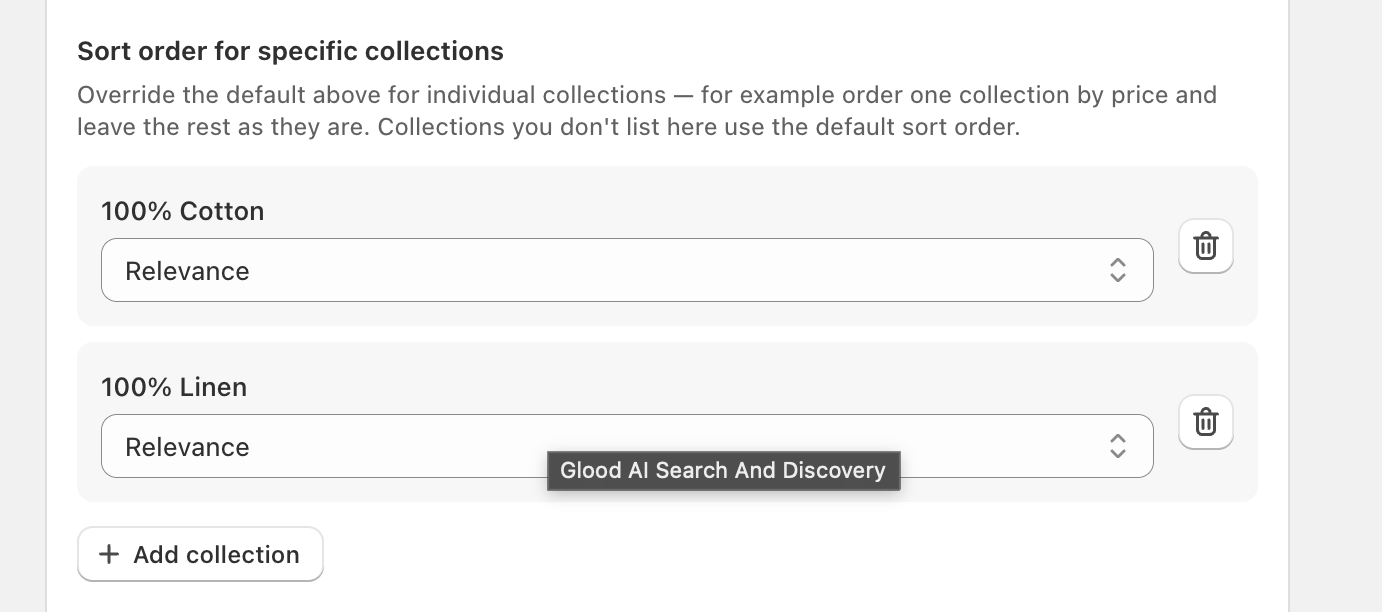
3. Save
Click Save. The sort order applies to those collections right away.For headless & custom storefronts
Once saved, the Search Config endpoint returns the collection’s configured ordering indefault_ordering whenever the request passes target_page: "collection" with the collection’s target_id. Use it as the pre-selected option in your sort control instead of assuming relevance.
Search requests that omit sort resolve the same way — the collection’s configured sort first, then the shop-wide default, then relevance.