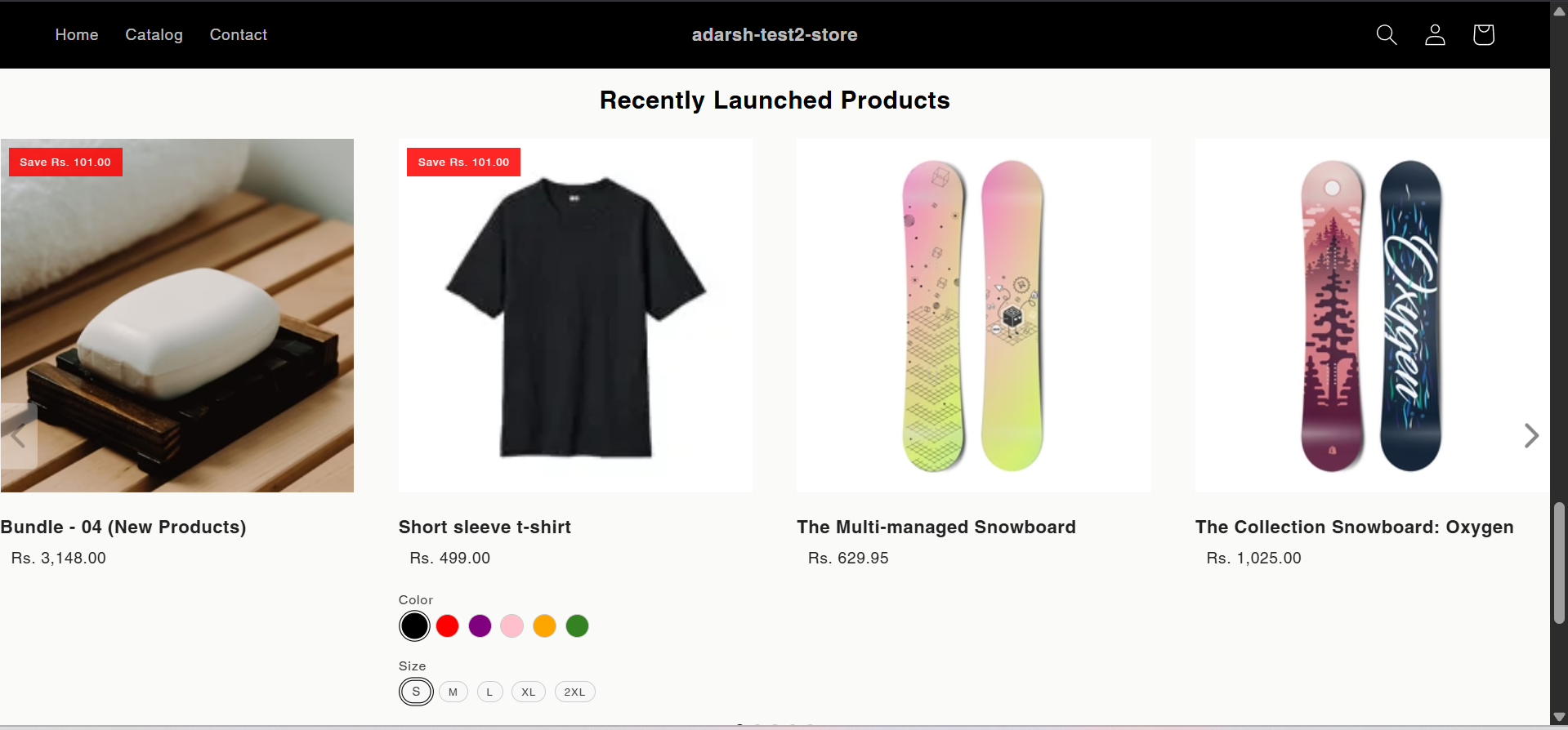
Implementation Steps
1. Open the “Glood Product Recommendations” app in your Glood.AI admin
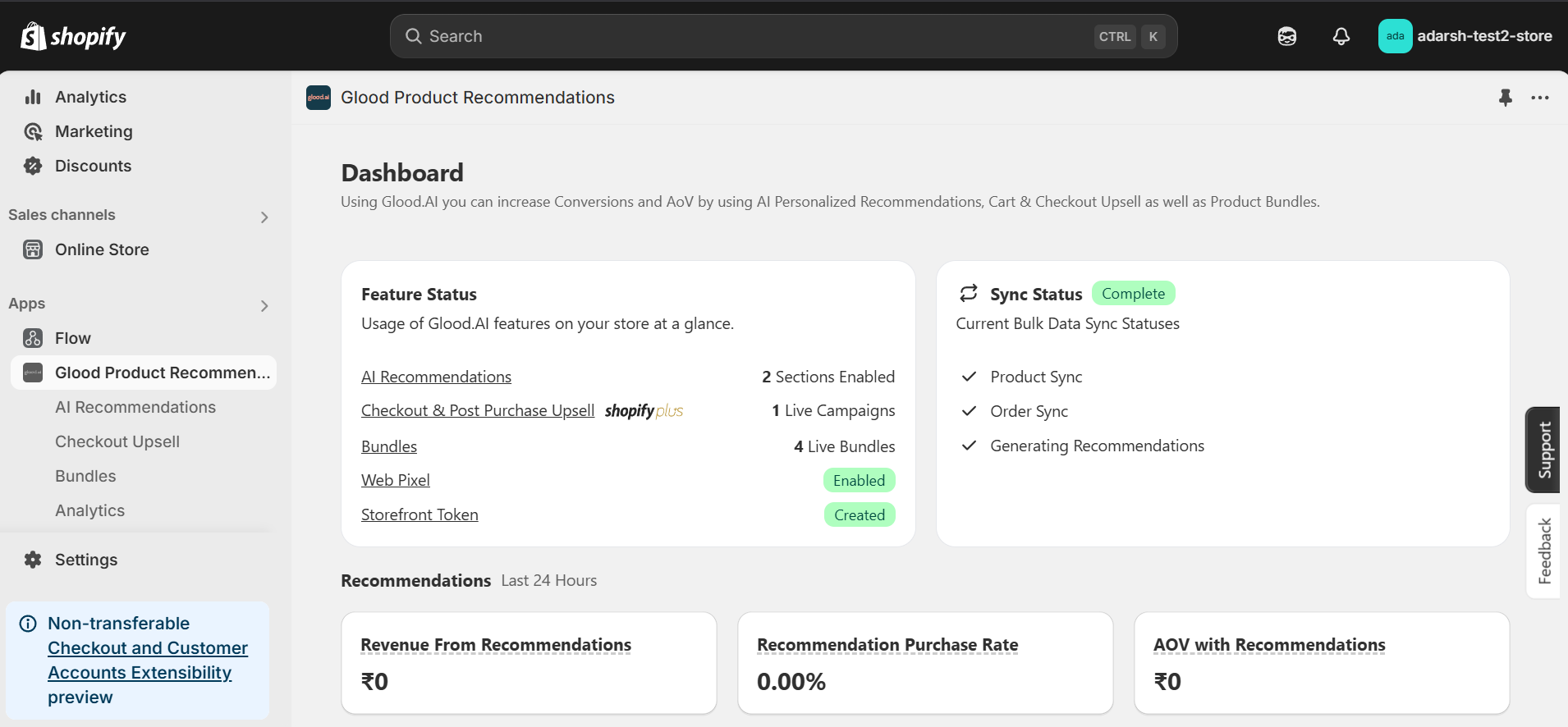
2. Click on the “AI Recommendations” section from the app menu
→ This will open the AI Recommendations Setup screen, where you can create and manage personalized product recommendation sections powered by AI.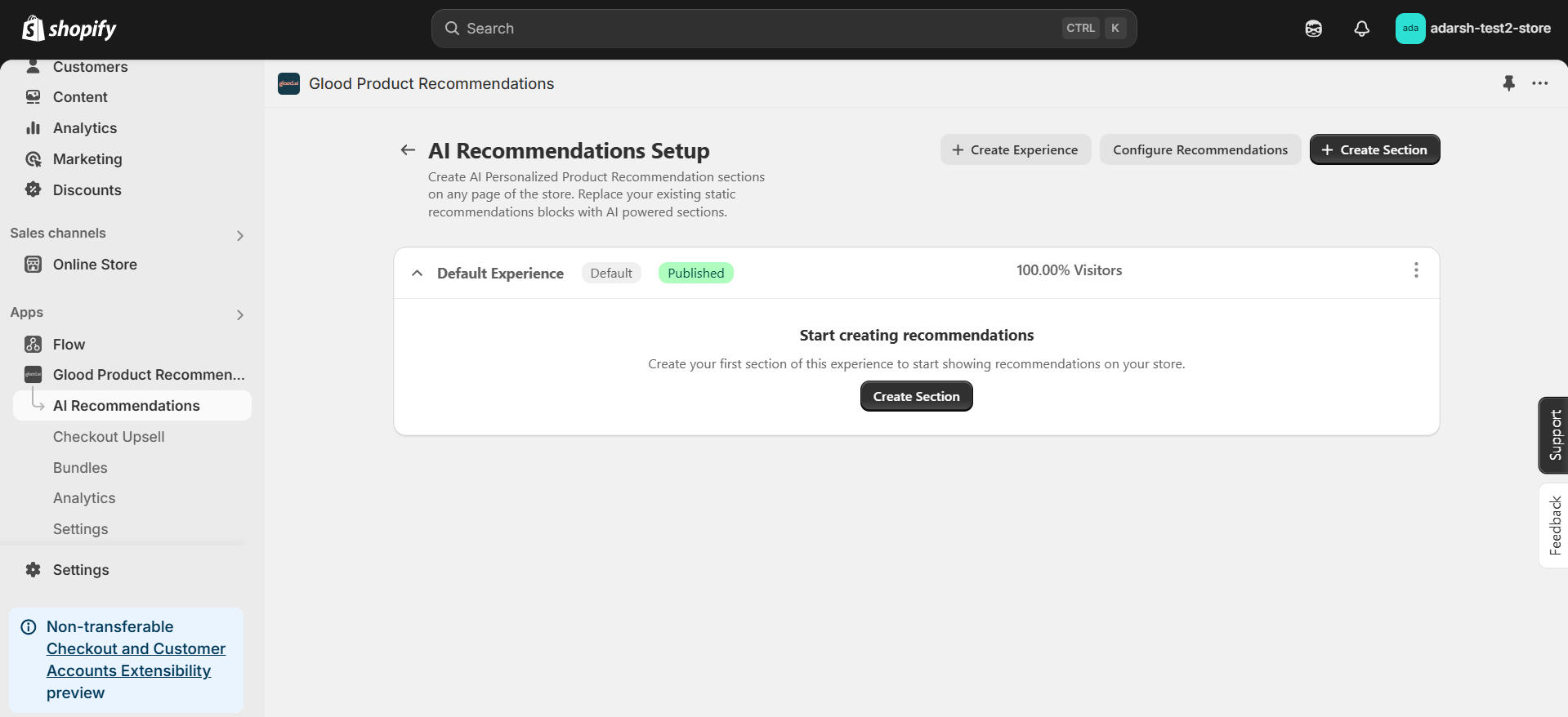
3. Click on the “Create Section” button on the top-right corner
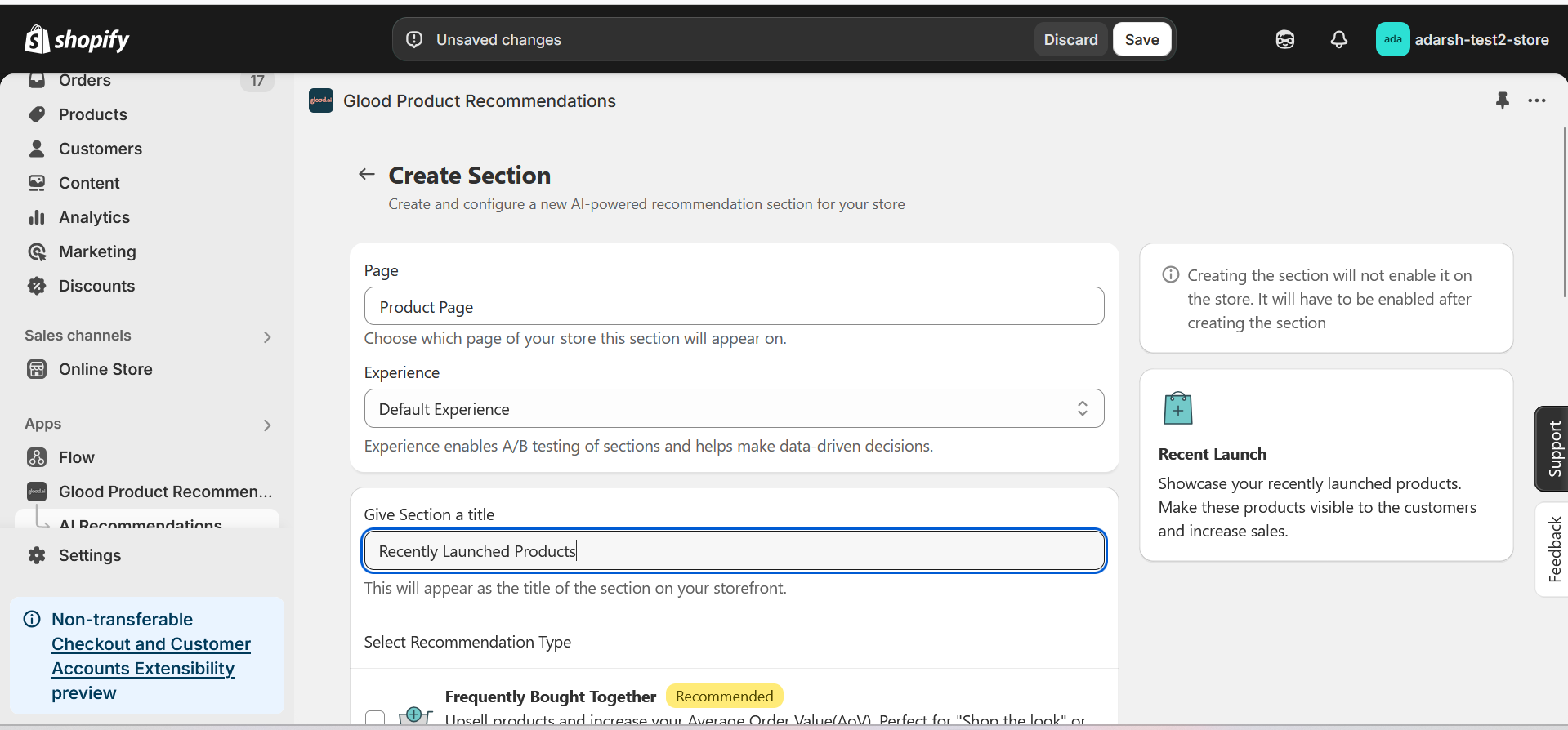
- This will open the Create AI Recommendation Section screen
- Select the page where you want to display the section
- Choose the experience type and give the section a title (e.g., Recently Launched products / New Arrivals)
- Under Select Recommendation Type, choose Recent Launch to display your newest products
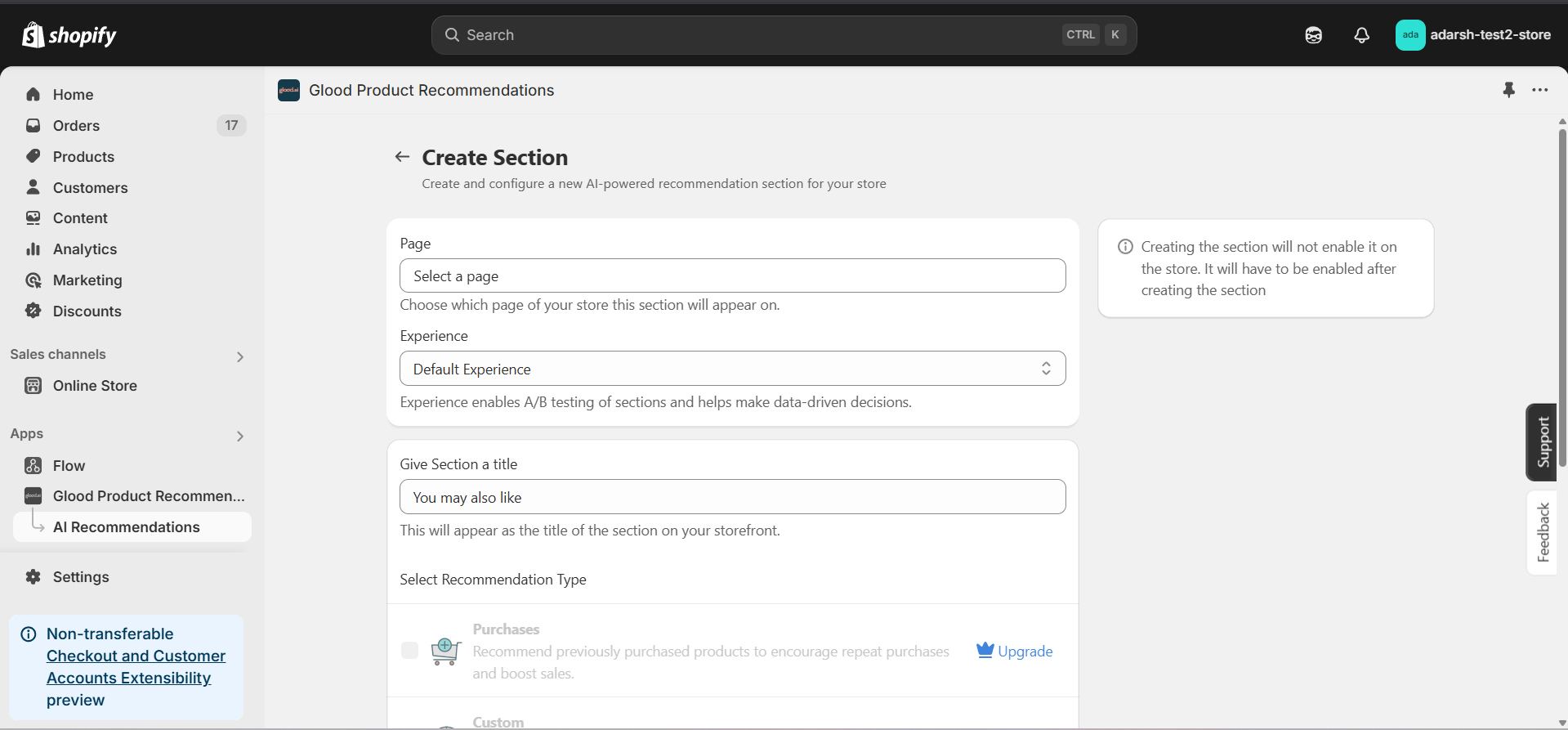
4. Click on the Save button to create the section
- After selecting Recent Launch as your recommendation type and filling out the necessary details, click on the Save button
- This will create the section and open the section detail page
- Note: The section is disabled by default until you enable it
5. Configure Your Section (Section Detail Page)
→ Once saved, you’ll be redirected to the Section Detail Page: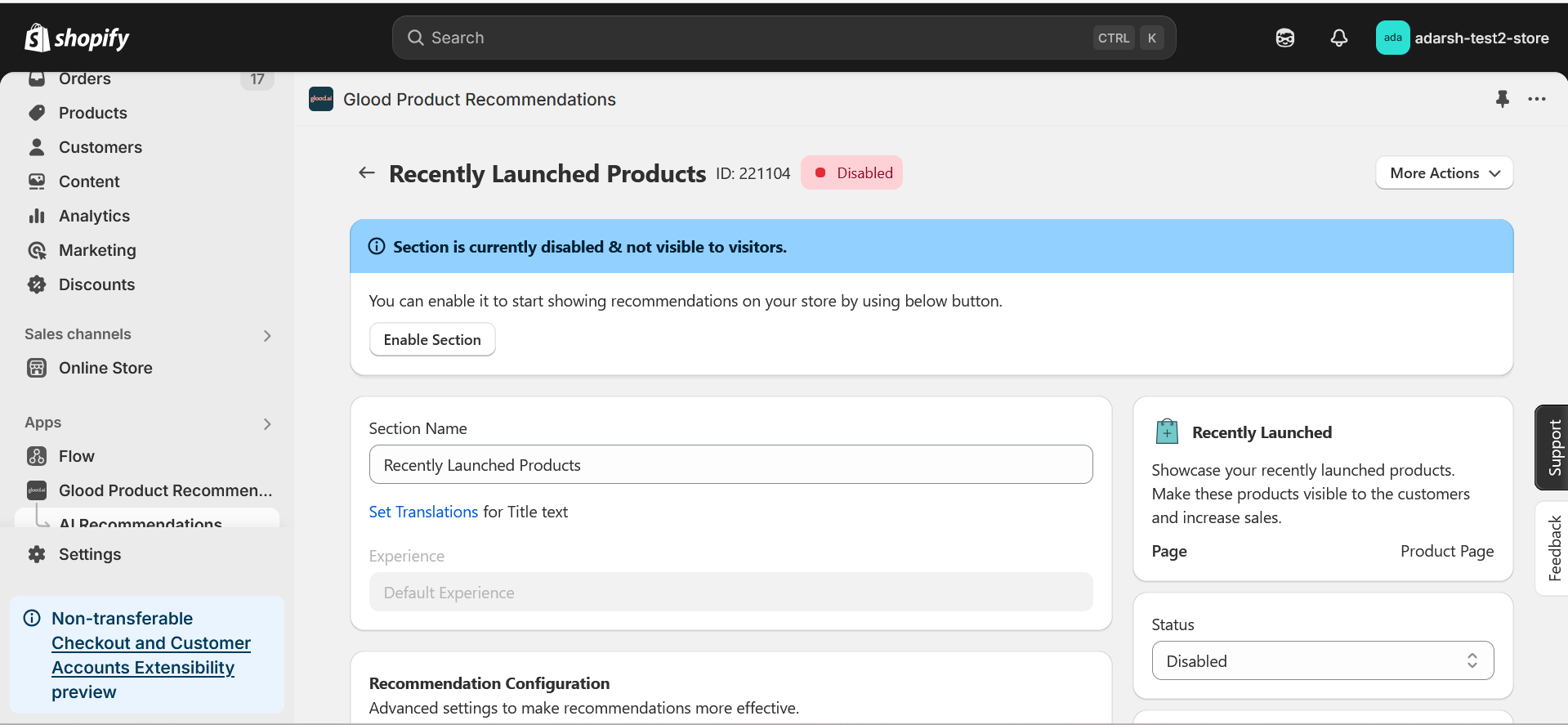
- Section Name: Customize the name of your section
- Set Translations: Add translations for different languages
- Show Sold Out Items as Recommendations: If enabled, even out-of-stock items may appear in the suggestion list.
- Choose where to show the section on your Shopify store:
- Enter a div ID, class selector or xPath to specify the location (default: #shopify-section-product-template)
- Set the position number to control where the section appears within that location (1 = first section)
- Use breakpoint-based configuration for granular control across different screen sizes
- For direct theme code placement, copy the provided widget code snippet
- Optional: Enable “Require app block placement” to control section display in storefront
- Choose how recommended products should be ranked and ordered
- Options include:
- No criteria (default)
- Bestsellers first
- Price (high to low)
- Price (low to high)
- Personalized for viewer
- Random
- Define what happens when primary recommendations aren’t available
- Options include:
- Random (default)
- Best sellers
- Trending
- No criteria
- Minimum Price: Set a floor price for displayed products
- Maximum Price: Set a ceiling price for displayed products
- Control whether this recommendation section is active or inactive on your store
- Simple toggle switch to enable/disable the section
- Choose between Visual Editor or Visual Editor V3 for customizing your section’s appearance
- Select a template:
- For stores with v2 templates, only Visual Editor will be visible
- For stores with v3 templates, both Visual Editor and Visual Editor V3 will be visible
- Make changes to your section’s appearance by clicking the Visual Editor or Visual Editor V3 button based on your assigned template
- Customize layout, styling and content through the editor interface
- Configure template-specific settings by clicking the “Click Here” link
- Select a default layout style:
- Carousel
- Horizontal Grid
- Choose layout style for different screen sizes:
- Small screens (mobile): Select Carousel or Horizontal Grid
- Medium screens (tablet): Select Carousel or Horizontal Grid
- Large screens (desktop): Select Carousel or Horizontal Grid
- Control which visitors see this recommendation section
- Available targeting options:
- All visitors (default)
- First-time visitors
- Returning visitors
- Buyers
- Is customer
- Is not customer
- Helps create personalized experiences for different user segments
6. Preview and Test Your Section
→ After configuration, preview and test the section to ensure it works as expected.